






Reverse Image Search
Search by Image: The easiest way to search picture on multiple search engines from one place


How to Find Similar Images in 3 Simple Steps
Upload Image for Image Search
Perform a Similar Photo Search

Find Image Source in Results
Key Features of Our Reverse Image Search Tool

Unlimited Image Search
Perform unlimited free image matching sessions. Repeatedly upload pictures to locate comparable photos and run duplicate image searches with no restrictions.

Search Multiple Platforms
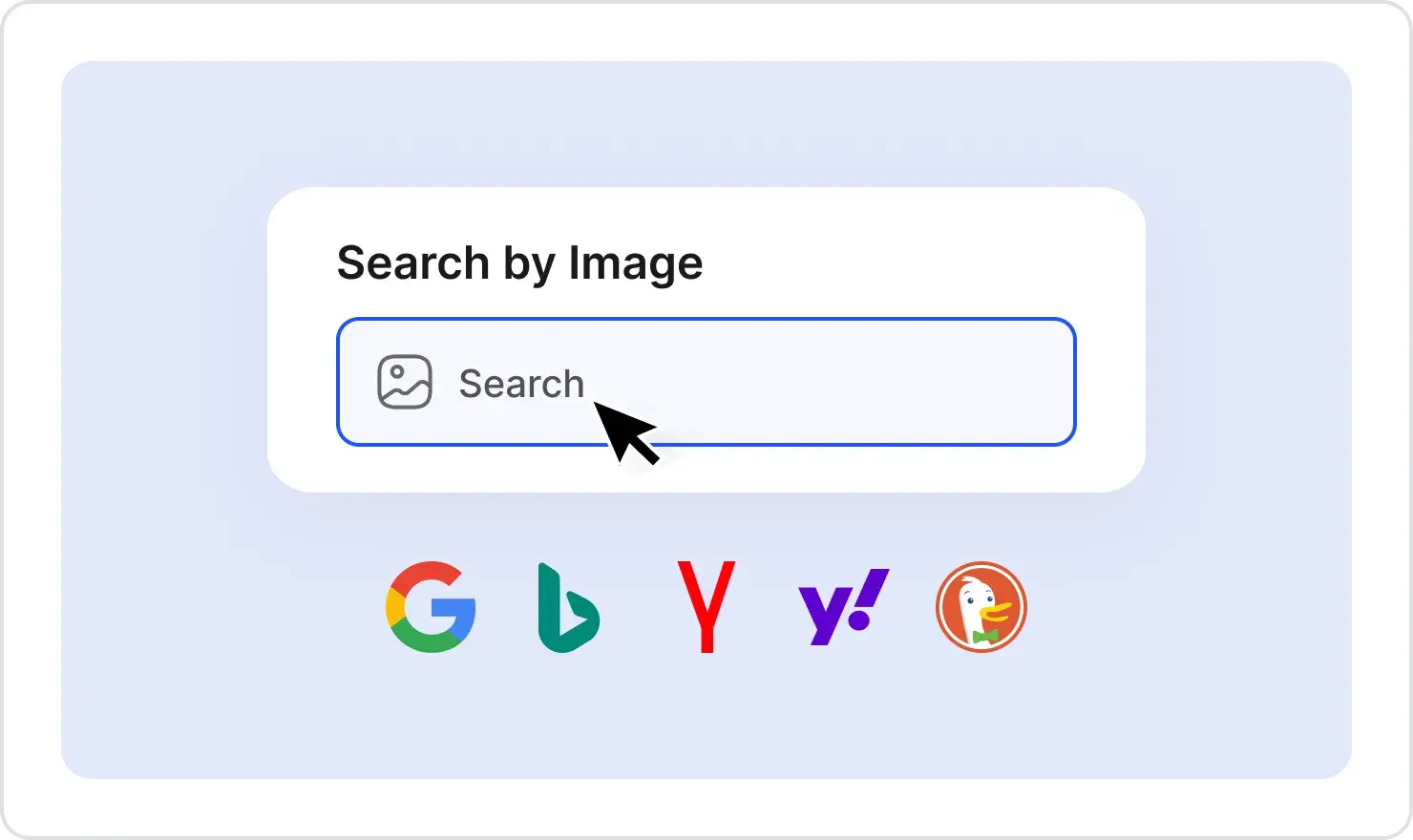
Simultaneously query Google, Bing, Yandex, Yahoo, and DuckDuckGo using our multi-engine image finder or select the specific search engines you want.

No Signup Required
Simply upload an image to discover similar photos, duplicate images, and check image originality—all without any signups or installations.

Multilingual Support
Perform multilingual photo searches for precise results. Our tool supports international queries to locate matching images and visually similar images from around the world.

Universal Compatibility
Use our visual search tool on any device—desktop, tablet, or smartphone. Experience fast uploads and accurate, similar photo searches with full cross-platform support.

Privacy & Security
Enjoy a secure image search experience. We don’t store your images, ensuring that your searches are completely private.
Different Ways You Can Search By Image
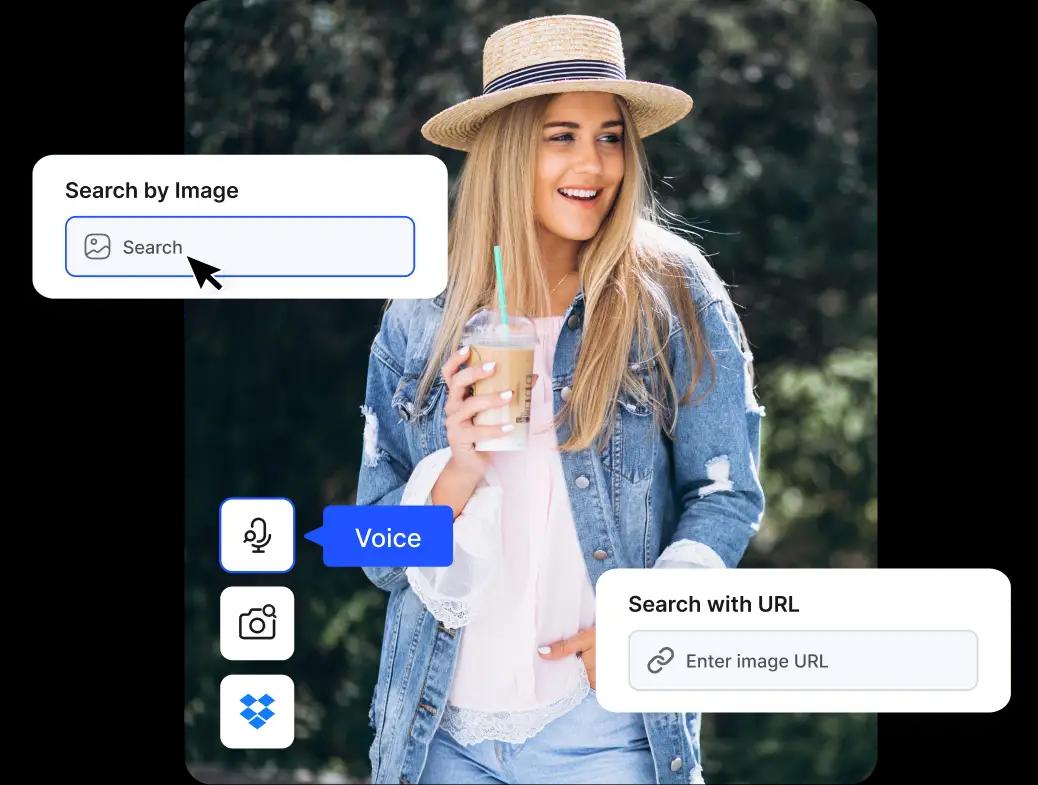
- Search by Image: Upload an image from your device to launch a fast photo search. Our tool finds exact matches and visually similar pictures, helping you locate duplicate images and verify copyright.
- Search with URL: Enter an image URL to trigger an automatic image matching process. Our tool retrieves the photo and scans for identical as well as similar images online, delivering matching results instantly.
- Search by Text: Type a text description to initiate an image search by keywords. Our tool locates comparable photos and matching visuals using your description for precise, text-based results.
- Cloud Integration: Access images from your cloud storage (e.g., Dropbox) for seamless visual image lookup. Upload pictures directly from the cloud to uncover similar images and perform duplicate image searches online.
- Search Using Camera: Allow camera access to snap a photo and start an on-the-go visual image search. Our tool captures real-time visuals and locates comparable pictures online instantly.
- Voice Search: SSpeak your query using your device’s microphone to conduct a free photo search. Our tool converts your voice into text to find matching images and similar pictures online.
Reverse image search is a technology that allows you to use an image to search online, rather than text, to find images similar to it. It's ideal for anyone working with visual content to search image sources, verify authenticity, or discover where a particular image is used.
Reverse photo lookup simplifies workflow and enhances productivity, from identifying unknown objects to tracking how and where your copyrighted images are being used.
How the Reverse Image Search Process Works
Reverse image search works by analyzing your image's visual and contextual details to find duplicate images or similar images online. Here’s how the image search techniques work: Step-by-Step
1. Initial Image Analysis
When you upload a picture, the engine begins to understand the image and its overall content by recognizing objects, scenes, or elements.
2. Understand Image Content
The system then analyzes the details of your photo. It looks at key elements like colors, shapes, and patterns to create a unique “digital fingerprint” of your image for finding similar visuals in the database.
3. Compares the Images With Database
The tool compares the “fingerprint” of your image with billions of images stored online.
- Specific Features: The system focuses on the unique features of your image to find the most relevant matches.
- Context Awareness: The tool understands relationships between objects in your image.
4. Image Search Techniques: Matching and Scoring
Once comparisons are done, the system assigns similarity scores to the matches. The closer the match to your image, the higher the score. The best matches appear at the top.
5. Display Results
Finally, you get your results, which include:
- Find Similar Photos: Visually close matches to your uploaded picture.
- Websites Using the Same Image: A list of sites where your picture is used.
- Alternate Sizes: Different dimensions or cropped versions of the same photo.
- CBIR (Content-Based Image Retrieval)
CBIR is the core technology that analyzes the visual features of your image—like its colors, patterns, and shapes—to create a “blueprint” for finding matches
- QBIC (Query-Based Image Content)
QBIC focuses on what’s most important in your image. QBIC prioritizes the important details to find the closest matches.
- CBVIR (Content-Based Visual Information Retrieval)
CBVIR takes it a step further by adding context. It recognizes objects, understands their relationships, and adds meaning to the search.
Reverse search image helps you learn more about any picture you have. It works like a magic trick: you give it a photo, and it finds details about that photo on the internet. Discover additional benefits of using a reverse picture lookup tool:
- Find Similar Pictures
Sometimes, you want a picture that looks like another but has a different style. A similar image finder helps you discover new versions or find similar pics in just a few clicks.
- Image Copyright Checker
Suppose you want to verify the originality of an image or find its source. Reverse search pics can act as an Image copyright checker and help you find the original owner or source. You can give credit to the person who created the picture or collaborate on projects.
- Boost Search Engine Optimization for Your Website’s
Using the right images can help your website show up higher in search results. You can use reverse image search for searching pictures online for your blog.
- Get Backlinks Through Image Search
A picture search can show if others use your images without credit. You can then ask them to mention you as the creator and link back to your website.
- Learn more about the Image and Object of an Image
Curious about a person, place, or animal in a photo? Reverse picture lookup helps you find details about anything in the picture—like a dog’s breed or the name of a famous building.
- Find Products by Photo Search
Have you ever seen a product picture that has no label? You can reverse search pictures to learn more about them and find where to buy them.
- Find Video with Search By Image
You can find videos by image reverse searching with video thumbnails or scenes of the video. You can find the video’s source or check if someone uses your copyrighted work without permission.
Search by Image is a powerful way to find visually similar images, track image usage, or identify objects in pictures. Google, Bing, Yandex, Yahoo, and DuckDuckGo are the top platforms for image search, each excelling in unique areas:
- Google: Best for global coverage and finding high-quality images, identifying objects, and retrieving web usage data. Its vast index ensures unmatched precision for widely used images.
- Bing: Strong for visually similar content and commercial images. Bing excels at retrieving product-related results, such as e-commerce listings or stock photos.
- Yandex: Outstanding for identifying similar images in Russia and surrounding regions. Yandex specializes in matching obscure or localized visuals that other platforms may overlook.
- Yahoo: Reliable for curated visuals and trending images. Yahoo leverages a streamlined index and Bing integration to deliver consistent matching results for similar photos.
- DuckDuckGo: Privacy-focused and unbiased, DuckDuckGo delivers image results without tracking your activity. It blends independent indexing with trusted partner data to offer relevant, secure visual matches.
Performing image search on each engine separately can be time-consuming. With our tool, you can generate results from Google, Bing, Yandex, Yahoo, and DuckDuckGo in one search. This saves time and provides comprehensive results from the most reliable platforms.
Start your reverse image search today to uncover images and data from the world’s best search engines in a single step.
Using a reverse picture search—or, as some call it, a reverse photo lookup or image-based search—has never been easier. You can run this photo search on a phone or a computer to learn where a picture came from and who might be using it online. Below, we’ll show how to perform a reverse picture search on different devices.
How to do Reverse Picture Search on Desktop (Windows & Mac)
If you are on a computer—whether it’s Windows or Mac—you can do a reverse picture lookup in just a few clicks. Simply open our visual search tool and:
- Upload the Image: Pick a photo from your computer.
- Search Similar Images: The photo recognition engine will scan for similar or matching results.
- Explore the Image Copyright Check: Check for better-quality versions, discover other sites using your image, and learn more about its origins.
This process works for all major desktop systems. Just use a web browser, and you’ll be good to go!
How to do Reverse Photo Search on Mobile (Android & iOS)
Smartphones are great for snapping pictures and quickly running a reverse picture search. People often use an image-based search to find product images, confirm recipe ideas, or trace the source of a photo. Here’s how:
- Open Your Browser: Visit our reverse photo lookup tool on your Android or iOS device.
- Upload the Image: Tap the “Upload Image” button to feed the photo into the image finder.
- Image Search Results: In seconds, you’ll see websites or databases that feature the same or similar pictures.
Why Use a Reverse Image Lookup on Any Device?
- Higher Resolution Images: If your picture is too small or blurry, a quick reverse image lookup can unearth clearer versions.
- Check Image Copyright: Make sure you’re giving credit to the right creator or confirm no one is using your photos without permission.
- Stay Informed Anywhere: Smartphones let you do a reverse picture lookup on the go, while desktops give you a bigger screen to see details.
Whether you’re on Windows, Mac, Android, or iOS, a reverse image search is simple, fast, and effective. Just pick the device you prefer, follow these steps, and discover everything you need to know about any photo!
Other Image Tools You Can Try
At CopyChecker, we focus on making your work with images and documents faster and simpler. Whether you want to convert files, merge images, or extract text from scanned pages, our tools help you get it done with ease. Here are some image-related solutions you might find useful:
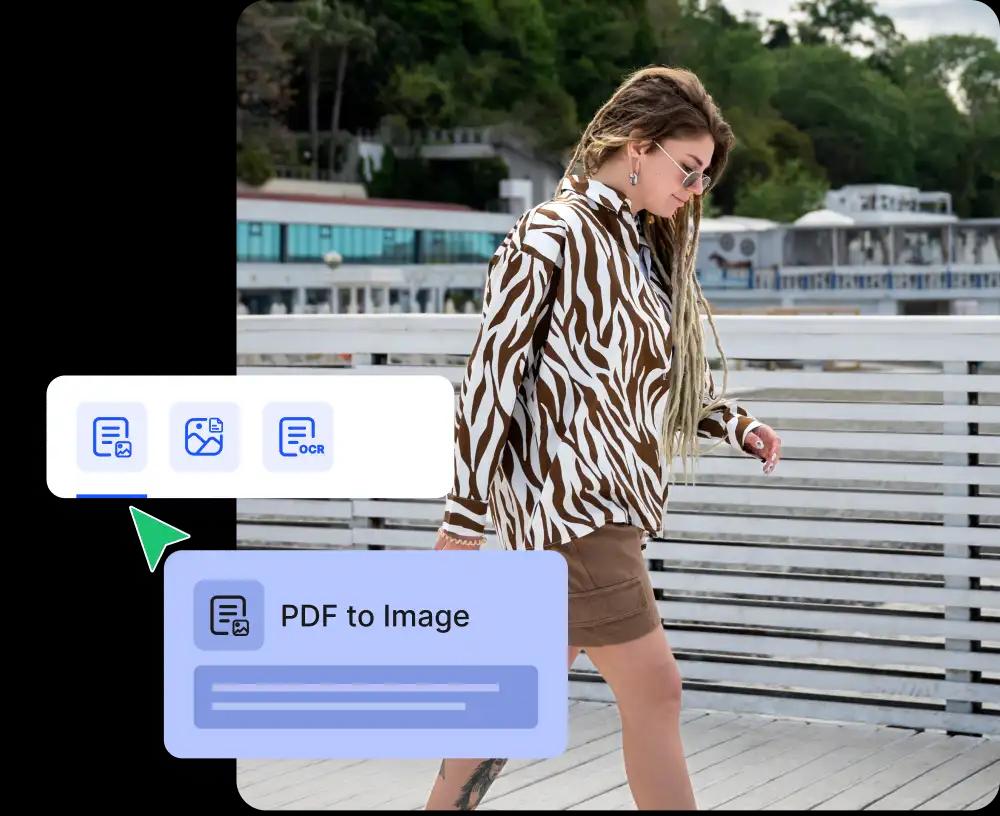
- Image to PDF: Convert multiple images into a single PDF file. This is perfect when you need to share pictures in a more compact form.
- PDF to Image: Turn PDF pages into individual images. This helps if you need to work with or search for pictures separately, such as when using a reverse image search.
- OCR PDF: Extract text from scanned or picture-heavy PDFs. This makes your documents readable and searchable before or after any image-related tasks.
Helpful Text Tools for You
Your writing can also be simpler and more efficient with our text tools. Whether you want to fine-tune your grammar, check plagiarism, or craft short text snippets, here are some free tools you can use:
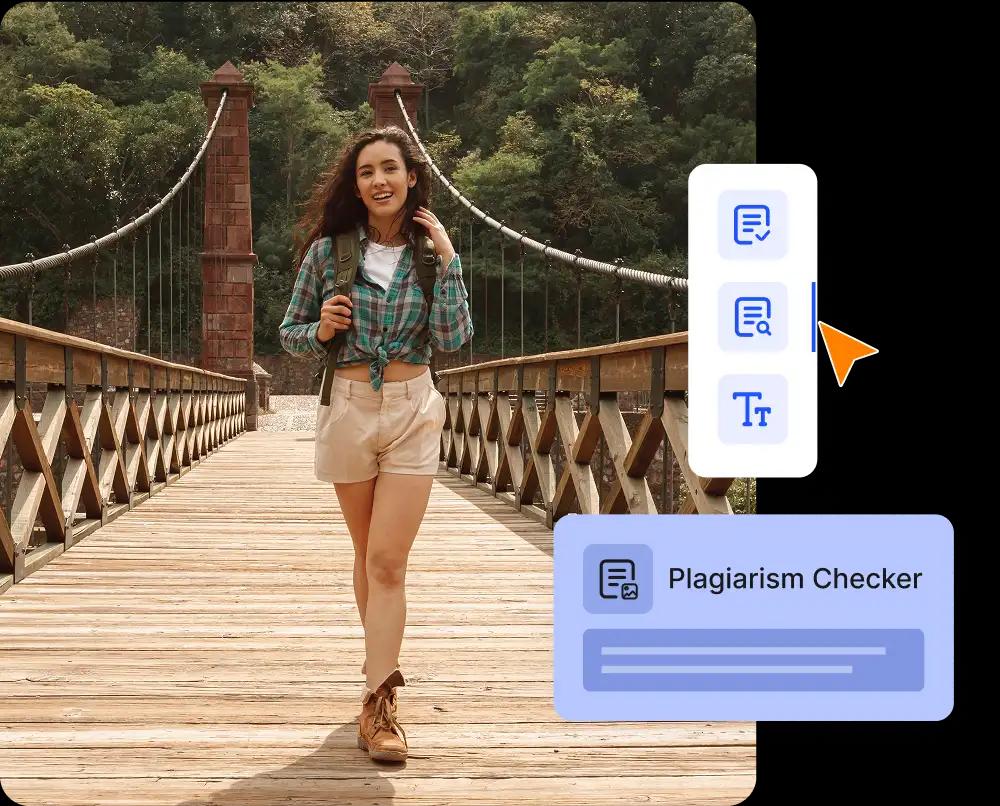
- Grammar Checker: Identify and correct grammar, spelling, and punctuation errors so your writing stays clear and polished.
- Plagiarism Checker: Make sure your writing is original by detecting any duplicate content or unintentional similarities.
- Small Text Generator: Quickly produce short text pieces, perfect for headlines, social media posts, or brief announcements.
FAQs About Reverse Image Search
How do I find the source of an image online?
Upload your image into our reverse image search tool, then check the results for the earliest publish date and the domain to identify the original source.
Can reverse image search find social media accounts from a photo?
Yes. Our tool can show you the image from public posts and profiles where the image was used. Private accounts may not appear.
Can I search by image URL instead of uploading a file?
Yes. If your image is already online, you can paste the direct image URL into the search box instead of uploading from your device.
Is my photo safe when I upload it?
Yes. Your image is processed securely and used only for generating your search results. We do not sell or store your images, and not share other platforms.
How do I find similar products from a photo?
Upload your product/item photo into our tool and filter the results for “Shopping” or “Products” to see visually similar items, prices, and stores.
Can I use reverse image search for copyright and brand protection?
Yes. Reverse Image Search is a powerful way to monitor where your photos, artwork, or logos are used online. By scanning the web for duplicates and near-duplicate images, you can find unauthorized use of your image or detect brand/logo misuse and copyright claims.
A Visual Step-by-Step Guide
Find similar pictures and locate image sources across multiple platforms in one place.
Step 1: Submit Your Search Query
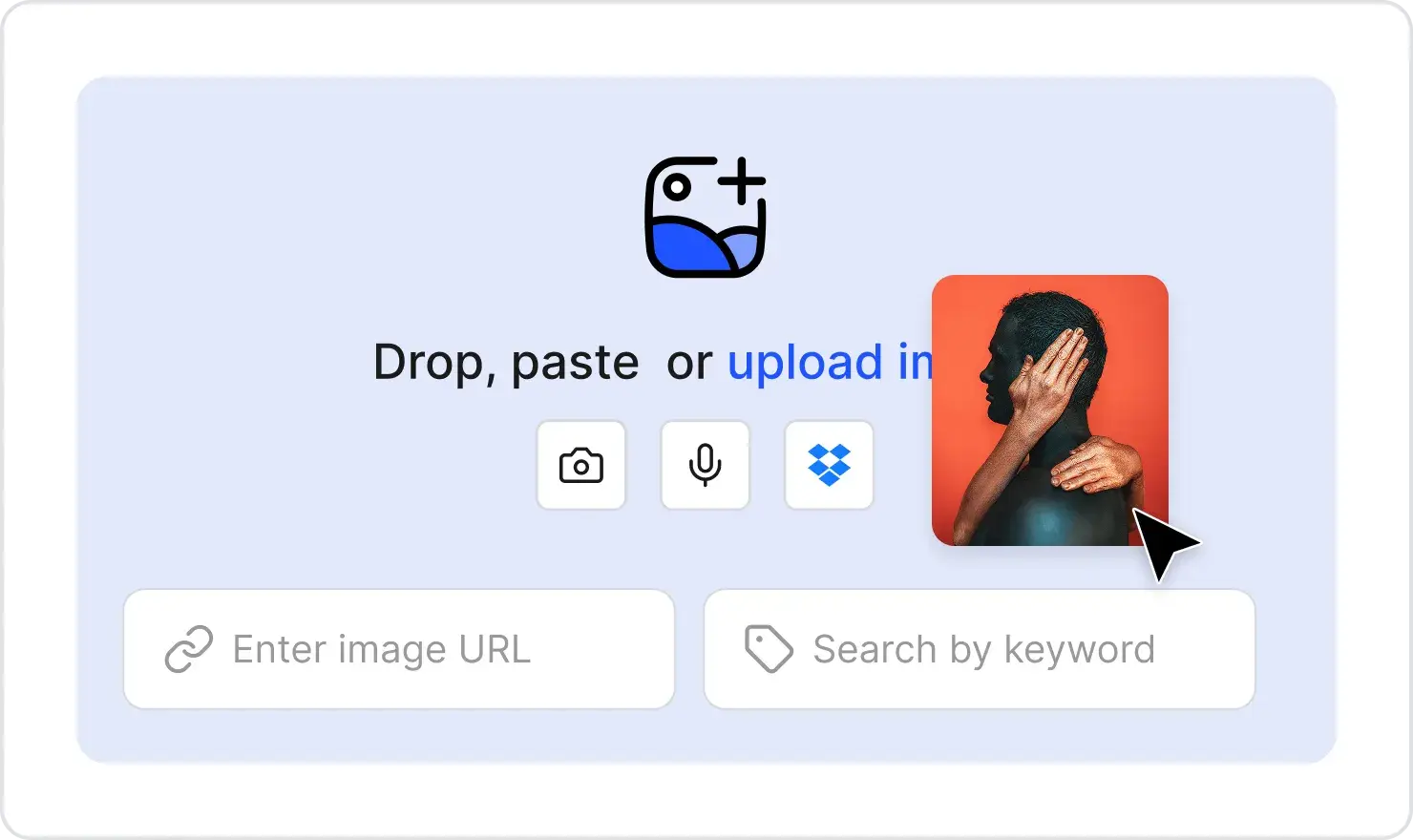
Choose one of the methods below to submit your search query for the image search:
- Upload an image from the device.
- Upload an image from Dropbox.
- Provide an image URL.
- Take a photo using the camera.
- Type keywords describing the image.
- Use your microphone for voice search.

Step 2: Choose Search Engines
Select the search engines you wish to use for image searches.
- Bing
- Yandex
- Yahoo
- DuckDuckGo

Step 3: Perform Search By Image
SearchClick the Search Similar Image button to perform the search. Our tool will perform the search and generate results from the selected search engines.

Step 4: Explore Results from Different Search Engines

Find the source of the image to know more about it.

You can view results obtained by their advanced search algorithms.